X
Focus
No need to click the field. One press and the cursor is in it.
 JoyHarness
A second job for an idle Joy-Con
Voice input, in your hand. Talk, send, switch windows. One hand does it all, and the keyboard can move aside.
Free & open source · Never records audio · macOS 13+
Nothing to buyThe controller you own is the hardware. Pair it over Bluetooth.
One is enoughLeft or right, either one does everything.
Three presses a messageInto the field, say it, send it.
Why I made it
I dictate code and messages all day, far faster than I type. To talk from a reclined chair, I got a desk mic on a boom arm. Still, after every sentence, I had to sit up to hit Return and reach for the mouse.
Keypads were either pricey or meant to lie flat on the desk. The Joy-Con in my drawer was made to be held. VaderCheng/JoyHarness had already mapped it to keyboard shortcuts in Python; I redesigned the button layout on top of it and built a native Mac app.
JoyHarness is a free, open-source Mac app. Once it's installed, a Joy-Con is a wireless Bluetooth keypad. It doesn't do the listening: it presses the key that starts your own voice input, and that tool hears you.
The part you'll use most
Left and right Joy-Cons do the same things, so hold it in whichever hand you like. Every button can be changed.
No need to click the field. One press and the cursor is in it.
Just talk. Your own voice input turns it into text.
Hold it for a new line.
ZR sends fn. Set fn as your voice input's start shortcut first, or nothing picks it up.
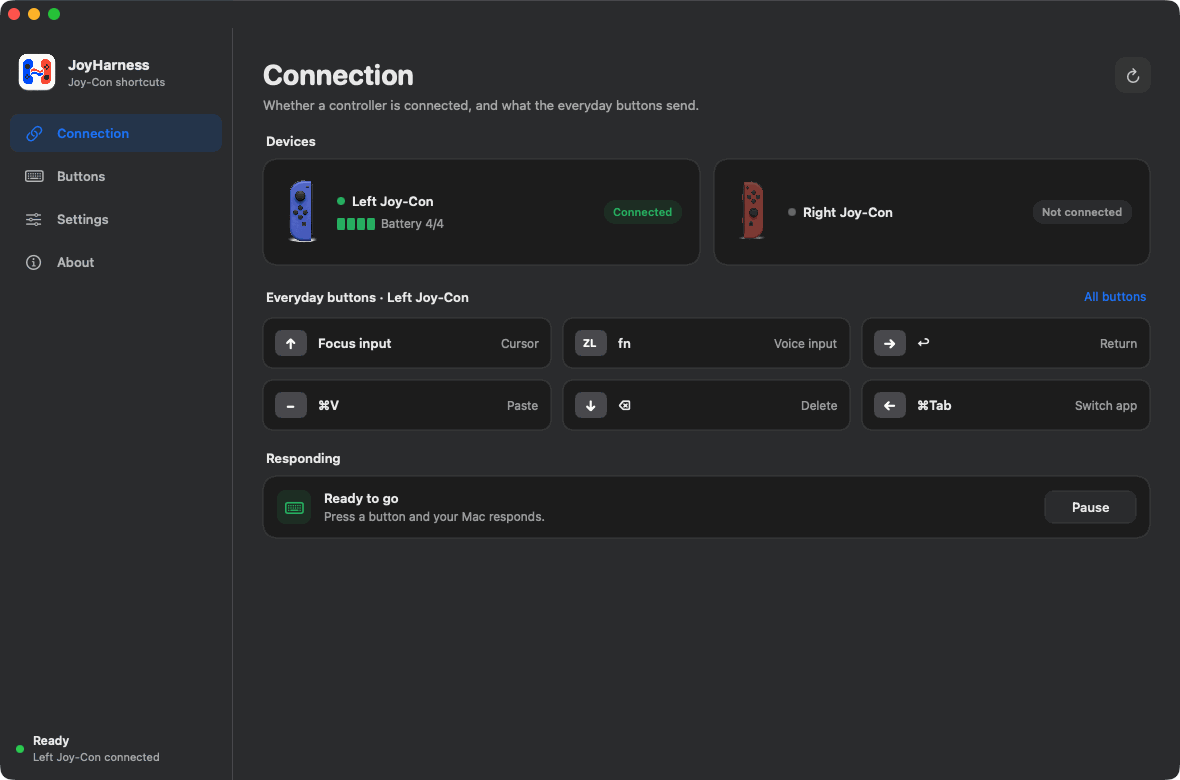
The controller's state and what every button does, in one window.
The most frequent actions sit where your fingers already rest: index finger on ZR to talk, thumb on A to send. I use these defaults every day, and anything awkward was replaced long ago.
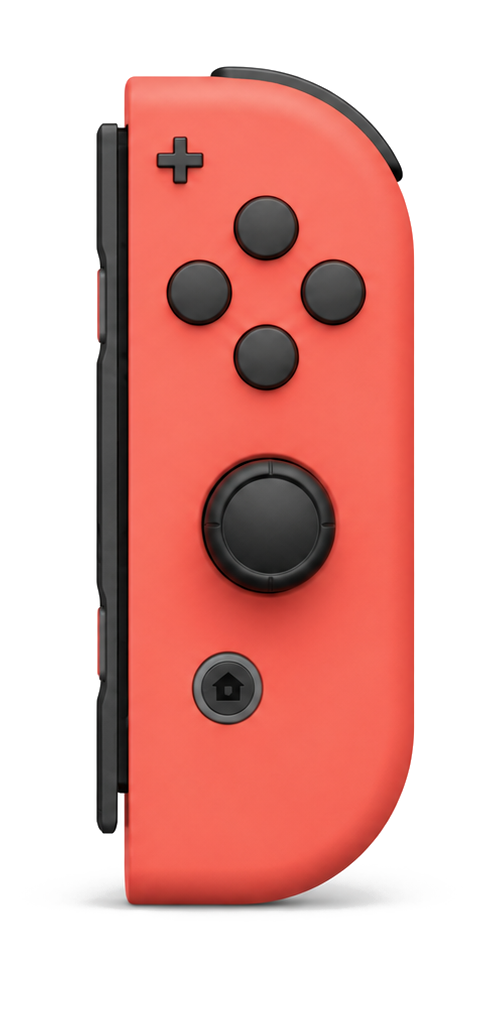
A tap and a hold can do different things: tap to send, hold for a new line. A dozen buttons goes a long way.
A long conversation or a whole document needs the keypad and the mouse. The keyboard is still there; you rarely need to touch it.
For long stretches of talking to a screen, editing, and sending.
Pull the mic over and lean back. Focus, talk and send are in your hand, so there's no sitting up to reach the keyboard.
You move; the keyboard stays on the desk. The buttons in your hand go where you go.
Asking AI to write code, writing, replying to messages: the same three moves every time. Focus, talk, send.
JoyHarness reads the buttons on the controller and sends shortcuts. It never records audio and never sees what you say. That stays in the voice input tool you chose, such as Typeless.
After that, it's simply how you use it.
Allow Accessibility. That's how it presses keys for you.
Hold the small round button on the rail until the lights run back and forth, then click Connect in Bluetooth settings. It buzzes once when it connects.
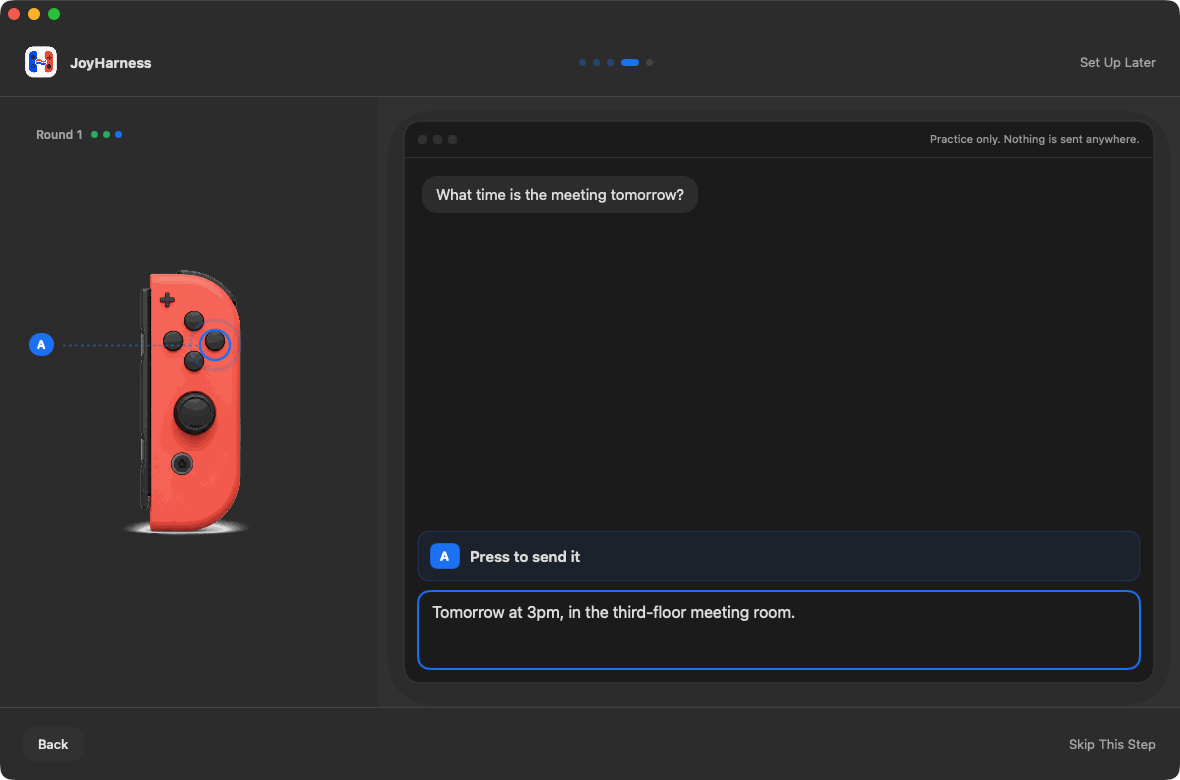
Round one: X to focus, ZR to say a line, A to send. Round two: paste, hold B to trim the extra bit, hold A for a new line, then say one more line and send.
fn first. JoyHarness sends fn; that tool picks it upNo. Pair it over Bluetooth once, click Allow once, then press buttons. To change what a button does, click it in the app. No code involved.
No. It's free, and the code is open source.
It exists to give an idle controller something to do. If you don't have one, don't buy one for this yet. First make sure you really use voice input a lot.
A keypad lies flat on the desk, and you look down to find the keys. A Joy-Con is held, with the buttons under your fingers, and it's wireless, so your hand can rest wherever it likes.
No. The left or the right one on its own covers talking, sending, deleting and switching apps.
No. JoyHarness reads controller buttons and sends shortcuts. It doesn't record audio and can't see what you said. Your own voice input tool does the recognition.
Any tool you can start with a keyboard shortcut. I use Typeless, and the defaults are set up for it; you can change them to any tool's shortcut.
That's the macOS switch that lets an app press keys for you. Without it, no shortcuts go out. JoyHarness reads the Joy-Con directly and doesn't watch your keyboard.
Not for now.
JoyHarness for macOS
macOS 13 or later, one Joy-Con, free.